So if you didn’t hear, Apple released a new operating system yesterday for the iPhone and iPad called iOS 7. I downloaded it last night and WOW, crazy different look and feel!
I thought I’d take a minute today to show you some of the differences when you download the new operating system.
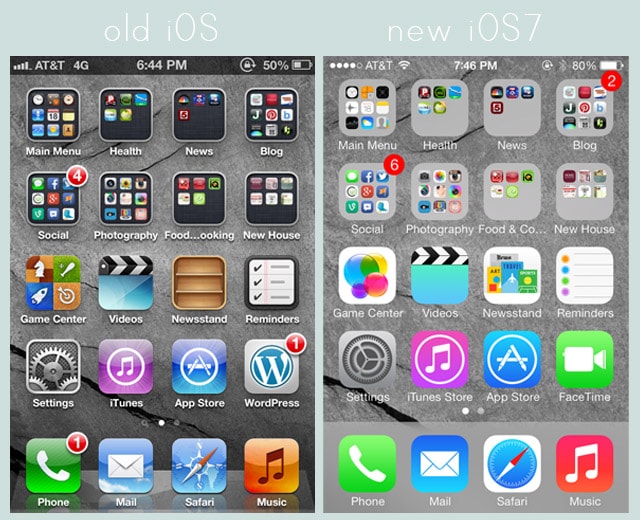
First thing… the home screen. The old iPhone/iPad operating system seemed to have more drop shadows and shading to the graphics. The new iOS7 has very flat, more modern graphics.
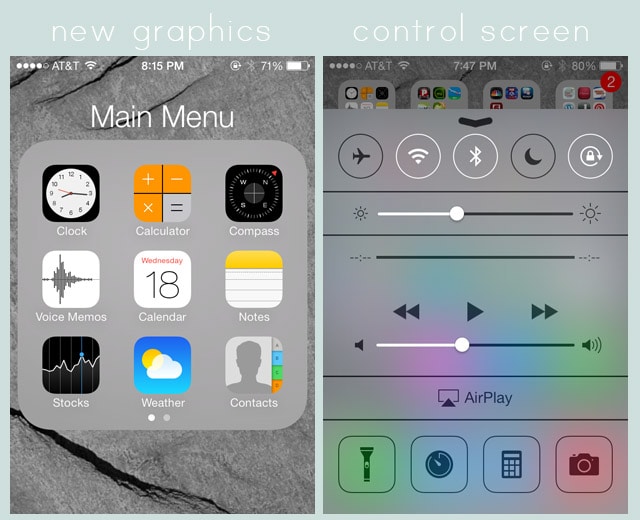
 As you can see in my Main Menu folder, many of the app icons have changed, including the calculator, compass and contacts.
Also, if you swipe up from the new home screen you’ll get taken to a control screen. Here you can change options for your Bluetooth, brightness, sounds, and even grab a handy flashlight.
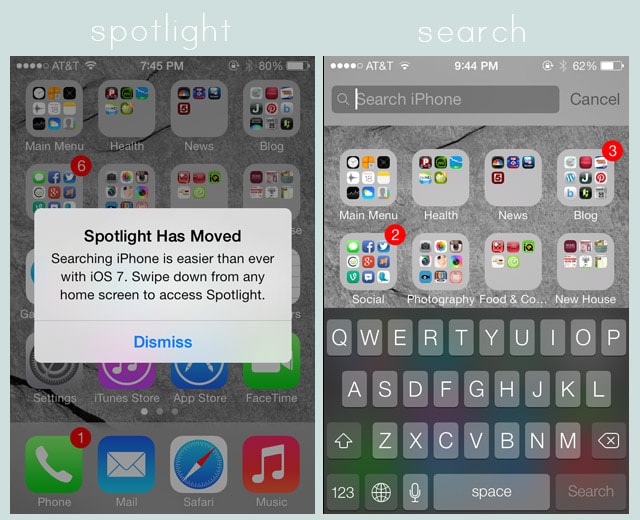
 One of the first notifications, when you update your operating system, is about the Spotlight search feature. Instead of swiping to the left, you’ll now swipe down to gain access. So swipe up for the control panel, swipe down for the spotlight search.
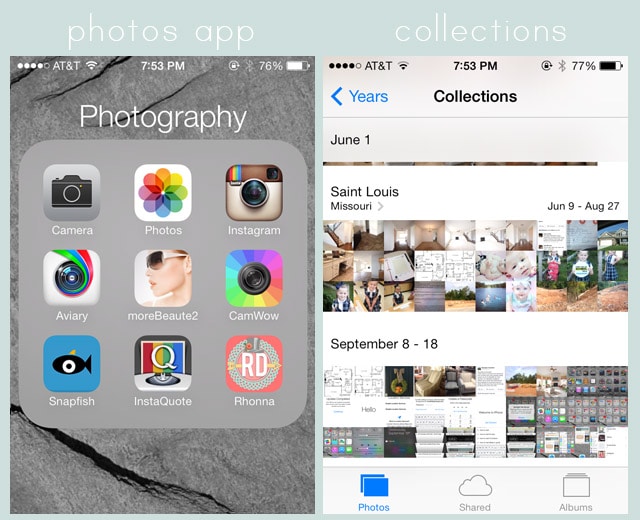
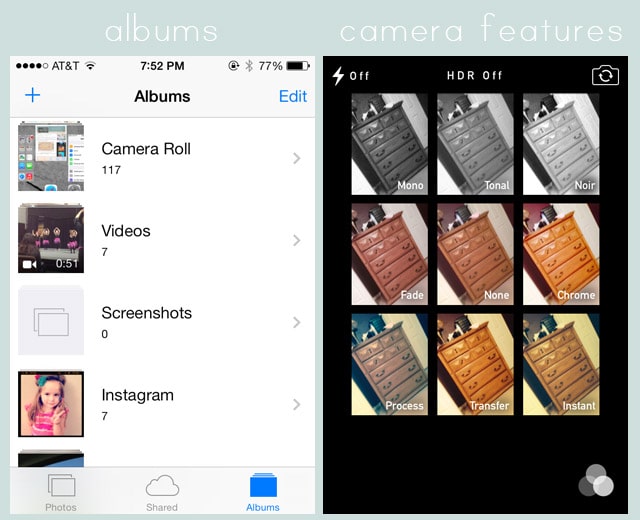
 Another big change is with the Photos app. Besides the new look, your photos will now be sorted into collections based on date and location.
 Your photo albums will also now include a separate folder for videos. And the camera? Well, let’s just say it’s awesome. Directly in the app you can add filters to your photos, plus crop them into squares (great for Instagram) or panoramic views.
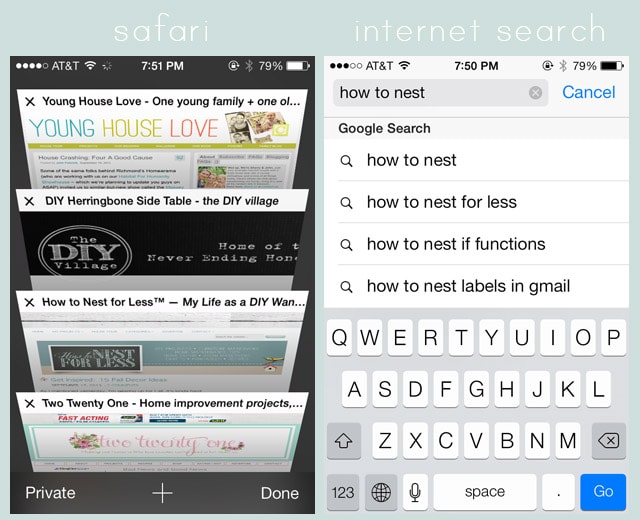
 Another updated app I’m totally loving is Safari. You can see all of your open pages in a cool new view, plus the search feature is so much better now with autofill!
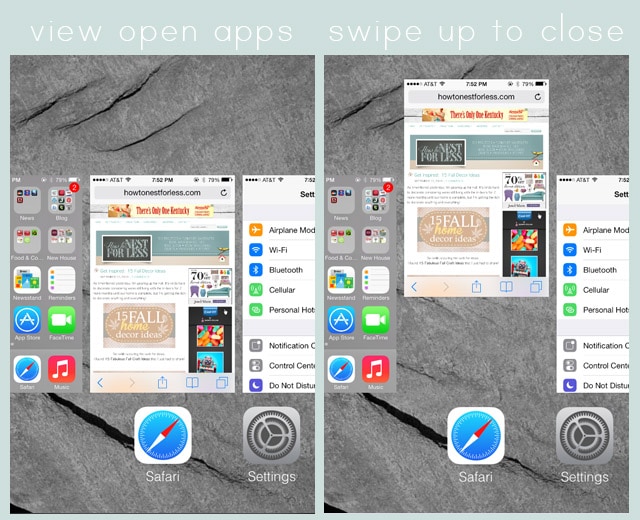
 In case you didn’t know this before, you can double click on the home button (the circular button at the bottom of your iPhone) to view all of the apps that you currently have open. Now you’ll get a screenshot of the open app and you just need to swipe up on the image to close it.
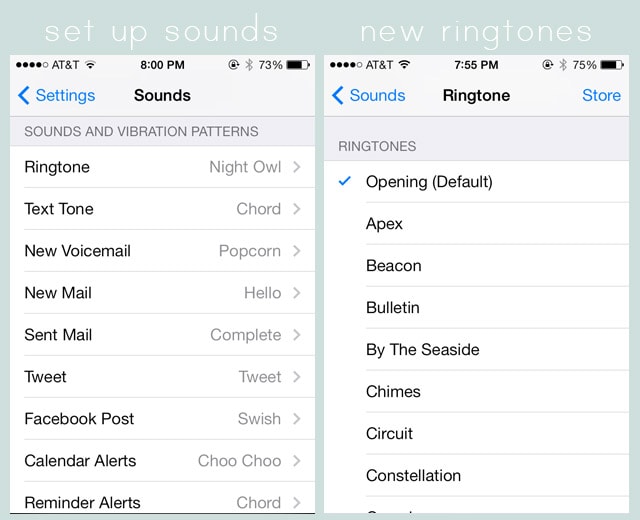
 Thankfully in Apple iOS7 they finally updated the sounds (found under settings). You can still access the old iPhone classic tones as well, but it will be nice to finally change from my Marimba ringtone.
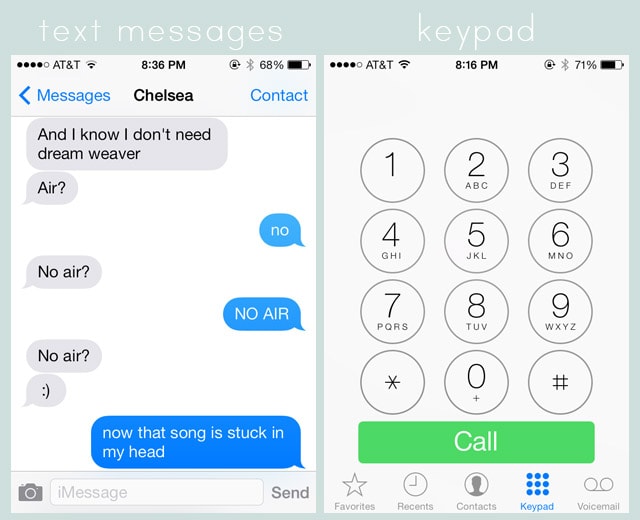
 Text messages have a new look. Not too crazy about this change thus far, but hopefully it will grow on me (and yeah, that’s me and my girl Chelsea from Two Twenty One texting yesterday. She kills me).
The keypad in the Phone application has updated as well. Again, a little flat and bland, but I think the people with fatter fingers will have fewer issues, ha!
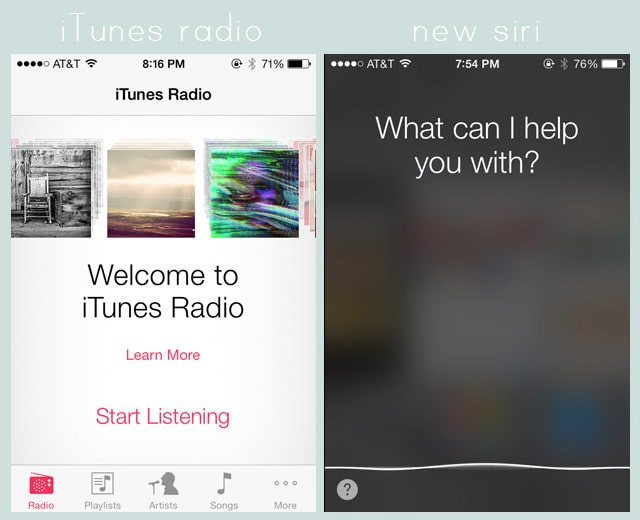
 Some new things to the iOS7… first up is iTunes radio. Umm… hello. LOVE! I use this all the time at work on my Mac Book so was super thrilled to have it available now on my iPhone. It basically streams music from over 250 stations. And the more you listen to it, the more it learns what music you like and will start playing the songs you love.
Siri also got a bit of a makeover. The screen changed where a little line shows the sounds wavelengths, plus Siri is available in two new voices as well (male and female options). And Siri is smarter than ever before and can understand more directions than the older version.
 In case you don’t know how to download the new operating system, click on the Settings button on your home screen. Click on General > Software Update. Then you should see a button that says Download and Install which will prompt you to download iOS7.
So I’m definitely going to have to get used to this new operating system. While the graphics are a little too flat for my personal preference, I do like some of the new features. And after playing with it for the past 12 hours, it is kinda like having a brand new phone.
So, have you downloaded the new operating system yet?
What do you think?

Ceci Bean says
My favorite new feature is a new “block caller” button on the call log details. I feel empowered to banish telemarketers!
howtonestforless says
Haha, same here!
Julie says
The funny part is that Androids already had all of the above features, and more!!! 🙂
howtonestforless says
LOL!
andrea says
haha! I was totally thinking the same thing…gotta love the progress that open source coding brings 🙂
maria says
As an apple lover, I am glad for the update. As cool as some of the newer androids are, I love that all my tech gadgets all are streamlined.
Thanks for your review! I’ll be buying the new phone tomorrow (I have the iphone 4 and it’s time for an update!)
BTW, there is an app called cocoppa that lets you redesign the app icons.
howtonestforless says
Yes, I saw that cocoppa app before! I might have to download it and try it out! And I totally agree… streamlined tech gadgets make my life easier!
Julie says
Do you find that after the update your battery drains more quickly?
howtonestforless says
No, my battery is actually better than it was before! Try restarting again and see if that fixes the problem.
Jenny says
This was very helpful to me! My 46 year old eyes don’t see the number on the calendar very well. I wish the numbers were more bold or had more depth. I think Siri is going to work better for me. Being from the South, I often found that she didn’t understand much of what I said to her. The new voice is a little more computerized, but I think it’s a good improvement. Thanks again for the tips.
howtonestforless says
Oh, the calendar is my biggest complaint about the new operating system. I liked it MUCH better before! And Siri is much better for us too. My husband often mumbles and it can understand him a bit more now 😉
arod says
i just updated today and you just showed me a bunch of stuff i still hadnt found thanks so much for sharing 😉
howtonestforless says
You’re welcome!
Kim says
I am leery. My 53 yr old eyes prefer the dark background on the icons, need contrast. They forgot about the boomers on that one! The new camera intrigues me. I’ll wait and see how it is received before I allow it to change on my iphone. Thanks for the heads up on the changes!
howtonestforless says
Kim, if you switch your background you might find one with a better contrast. I had to keep changing mine until I found one that suited my eyes (it’s on a different background now than the one I used in the tutorial)! The camera is much better too. Good luck when you decide to upgrade!
Crystal says
I updated my phone yesterday. Thanks for the tutorial because I didn’t know of some of the features. I’m going to listen to ITunes Radio. I didn’t even know about it. Thanks so much for sharing all the new features. I love the new update.